
Introduction
WordPress has transformed the way we build websites. What started in 2003 as a simple blogging tool has evolved into a powerhouse platform for creating blogs, business websites, eCommerce stores, portfolios, forums, and more. Today, WordPress powers over 40% of all websites on the internet—making it the world’s most dominant Content Management System (CMS).
But what makes WordPress so special, and how can a beginner learn to use it effectively?
In this complete guide, we’ll walk you through the foundations of WordPress—from installation and setup to publishing content and optimizing your site. Whether you’re an aspiring blogger, entrepreneur, or marketer, this guide will help you gain a solid grasp of WordPress fundamentals.
What Is WordPress?
A Free, Open-Source Website Builder
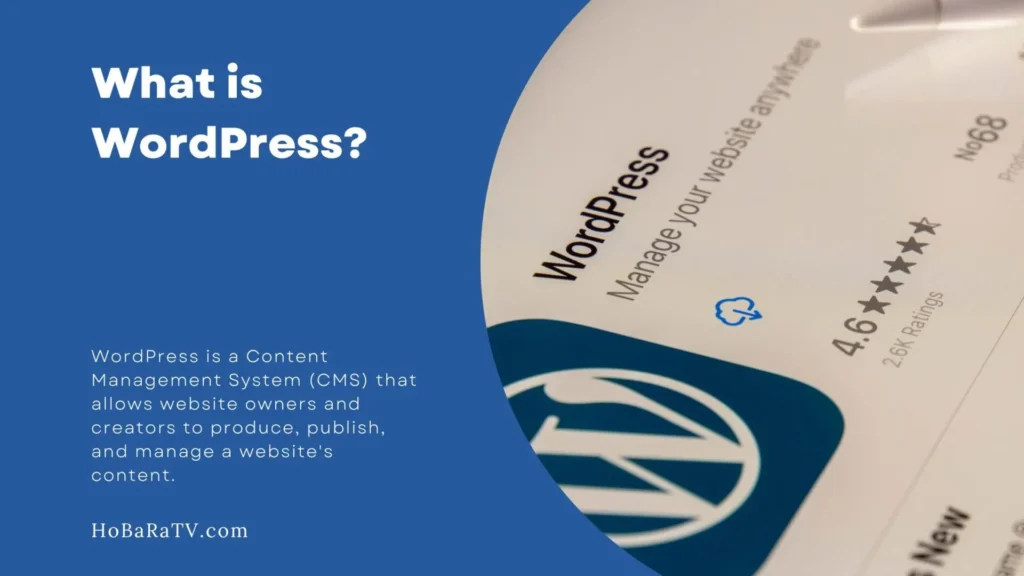
WordPress is an open-source CMS written in PHP and powered by MySQL databases. It allows users to build and manage websites without needing to touch a single line of code. Since it’s open-source, WordPress is completely free to use—although you’ll still need a domain name and web hosting.
There are two main versions of WordPress:
- WordPress.org: The self-hosted version with full control over customization, plugins, and themes.
- WordPress.com: A limited, managed version with restricted features unless you pay for a premium plan.
For flexibility and professional development, WordPress.org is the recommended route, and it’s the version we’ll focus on in this guide.
What Is a CMS and Why Use One?
A Content Management System (CMS) is software that lets users build, edit, and publish digital content on the web. A CMS provides a user-friendly interface, eliminating the need for raw coding when updating content or managing files.
The Two Core Components of a CMS:
- CMA (Content Management Application): This is the dashboard or backend that allows you to create and manage content.
- CDA (Content Delivery Application): This takes your content and displays it properly to your site visitors.
With WordPress, users can manage entire websites, collaborate with team members, and control how their site looks and behaves—all through a visual interface.
Installing WordPress: Your First Step
Installing WordPress can be done manually or through a one-click installer provided by most hosting services. Popular installers include Softaculous, Installatron, and Fantastico.
Minimum System Requirements:
- PHP 7.4 or higher
- MySQL 5.7+ or MariaDB 10.3+
- HTTPS Support
Steps to Install WordPress Using Softaculous:
- Log in to your hosting control panel (cPanel).
- Open Softaculous Apps Installer.
- Choose WordPress and click “Install Now.”
- Fill in basic site settings like site name, description, admin username/password, and email.
- Click Install and wait a few moments.
- Once completed, visit
yourdomain.com/wp-adminto log into your WordPress dashboard.
Navigating the WordPress Dashboard
The WordPress dashboard is your command center. Everything from adding posts to installing plugins happens here.
Key Sections:
- Dashboard: Overview of your site activity, drafts, and updates.
- Posts: Where you create blog content.
- Pages: For static content like About, Contact, etc.
- Appearance: Customize your theme and widgets.
- Plugins: Extend functionality with add-ons.
- Settings: Adjust general options like time zone, reading settings, and permalinks.
Spend time getting familiar with the layout. This interface will become your digital workspace.
Choosing and Customizing a Theme
A WordPress theme determines the look and layout of your site. WordPress comes with default themes, but thousands more are available in the official theme directory and from third-party vendors.
Installing a Theme:
- Go to Appearance > Themes.
- Click Add New.
- Search or filter based on layout or features.
- Preview a theme or click Install.
- Activate it to apply the design to your site.
Customizing Your Theme:
- Navigate to Appearance > Customize.
- Edit colors, fonts, headers, menus, and widgets.
- Use the live preview to see changes instantly.
- Advanced users can modify CSS in the Additional CSS tab.
Note: Some themes come with their own theme options panel, and premium themes often include drag-and-drop page builders like Elementor or WPBakery.
Adding Functionality with Plugins
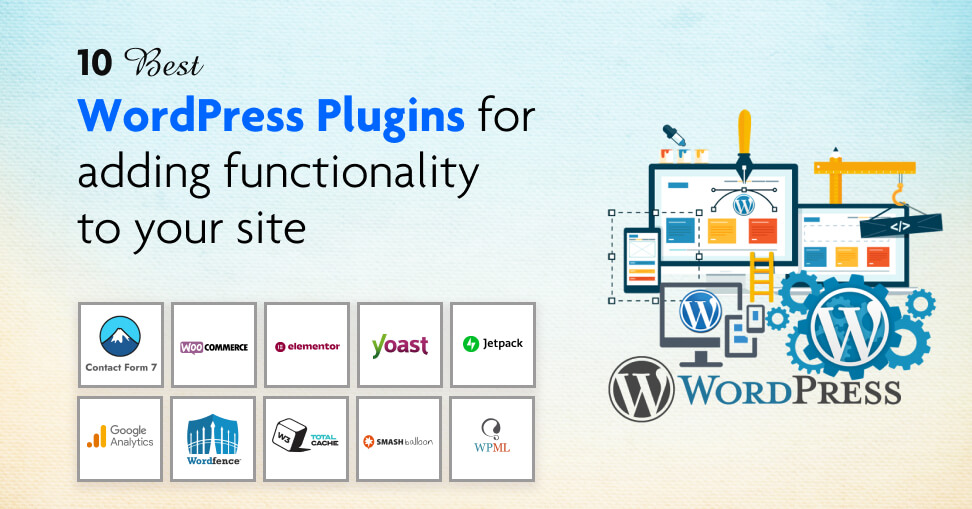
Plugins are like apps for your website. Want SEO tools, contact forms, or performance boosters? There’s a plugin for almost everything.
Installing a Plugin:
- Go to Plugins > Add New.
- Search by keyword or category.
- Click Install Now, then Activate.
Must-Have Plugins for Beginners:
- Yoast SEO or Rank Math: For search engine optimization.
- Akismet: Protects against spam.
- WPForms or Contact Form 7: Easy-to-use contact form builders.
- UpdraftPlus: Backup and restore your site.
- Wordfence: Adds a firewall and security scanning.
Take time to evaluate each plugin. Too many can slow down your site, so only install what you need.
Creating Content with Gutenberg (Block Editor)
In 2018, WordPress introduced Gutenberg, a block-based editor that allows users to build visually rich content by arranging “blocks” for paragraphs, images, buttons, and more.
Key Blocks You’ll Use:
- Paragraph: Basic text formatting.
- Image: Upload or choose from the media library.
- Heading: Break content into scannable sections.
- List: Bulleted or numbered lists.
- Quote: Highlight testimonials or important statements.
- Button: Add call-to-action links.
Each block comes with its own customization options in the right sidebar. You can also group blocks, reuse blocks, and even embed content from YouTube, Twitter, and other sources.
Pages vs Posts: What’s the Difference?
- Pages are static and timeless (e.g., About Us, Services).
- Posts are dynamic and chronological (e.g., blog entries, news).
WordPress automatically displays recent posts in reverse chronological order on your homepage (unless customized). Pages, on the other hand, are typically linked in your site’s main menu.
Managing Media in WordPress
The Media Library stores all your uploaded images, audio, videos, and documents.
To Upload Media:
- Navigate to Media > Add New.
- Drag and drop your files.
- You can also upload directly from a block inside the Gutenberg editor.
Use optimized images (JPG or WEBP for photos, PNG for transparent graphics) and compress them for faster loading.
Managing Users and Roles
If you’re building a site with collaborators or clients, WordPress allows multiple user accounts.
Default Roles:
- Administrator: Full control.
- Editor: Manage content but not settings.
- Author: Write and manage their own posts.
- Contributor: Submit posts for review.
- Subscriber: Read content and manage their profile.
You can manage users under Users > Add New and assign them appropriate roles.
Essential Settings for Every WordPress Site
General Settings:
- Set your site title, tagline, and timezone.
- Choose whether anyone can register as a user.
Reading Settings:
- Decide if your homepage displays a static page or recent posts.
- Set how many posts to display on blog pages.
Permalinks:
- Change the URL structure to something SEO-friendly (e.g.,
/post-name/). - Found under Settings > Permalinks.
Discussion Settings:
- Enable or disable comments.
- Control comment moderation and spam settings.
WordPress Security Essentials
WordPress is secure, but vulnerabilities often arise from outdated plugins or weak passwords.
Key Security Tips:
- Use strong passwords and change them regularly.
- Enable 2FA (Two-Factor Authentication).
- Install a security plugin like Wordfence or iThemes Security.
- Limit login attempts.
- Use SSL (HTTPS) for encrypted connections.
Backing Up Your WordPress Site
Backups are your insurance policy. If your site crashes, gets hacked, or breaks during an update, a backup can restore everything.
Ways to Back Up:
- Hosting providers (many offer automatic backups).
- WordPress plugins like UpdraftPlus, BlogVault, or BackupBuddy.
- Manual backup via cPanel or FTP.
Set up regular backups and always create one before making major changes.
Speed & Performance Optimization
Site speed affects both user experience and SEO rankings.
Tips for a Faster Site:
- Use lightweight themes and limit plugins.
- Optimize images with Smush or ShortPixel.
- Enable caching with plugins like W3 Total Cache or WP Rocket.
- Use a CDN (Content Delivery Network) like Cloudflare.
- Choose a high-quality web hosting provider with SSD and updated PHP versions.
SEO Basics for WordPress
SEO (Search Engine Optimization) is how your content gets found on Google and other search engines.
Beginner-Friendly SEO Practices:
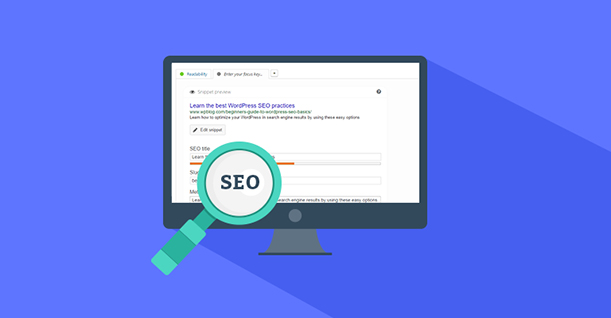
- Install an SEO plugin like Yoast or Rank Math.
- Use keyword-rich page titles and meta descriptions.
- Set alt text for images.
- Build internal links between pages/posts.
- Create a sitemap and submit it to Google Search Console.
What’s Next? Growing Your WordPress Knowledge
WordPress is constantly evolving, and the best way to master it is by doing.
Here’s what you can explore next:
- Build your first blog post or portfolio page.
- Learn how to set up an eCommerce store with WooCommerce.
- Dive into analytics with Google Site Kit.
- Set up email marketing using plugins like MailPoet or integrations like ConvertKit.
- Explore page builders like Elementor, Beaver Builder, or Divi.
Final Thoughts
Learning WordPress is one of the most valuable skills in today’s digital world. With its flexible, user-friendly nature and powerful ecosystem of themes and plugins, anyone—from non-techies to developers—can create beautiful, functional websites.
Don’t be overwhelmed by all the features. Start small, experiment, and keep building.
Whether you’re launching a personal blog or a business site, WordPress gives you the tools to bring your vision to life—without needing to be a coding expert.